Stop Paying for Static Hosting: Netlify to VM in 10 Minutes
Stop Paying for Static Hosting: Netlify to VM in 10 Minutes

- March 17, 2026
- 9:19 am
Imagine you are in the middle of development, and your deployment pipeline is more than an infrastructure. It becomes a necessity. You push code to make it live, and once it does, you keep moving.
Until one day, it doesn’t.
Without any warning or slowdown, you land on a dead site with a clear message: “You have hit your limit!”
That’s exactly what happened to me. My React 19 + Vite frontend, hosted on Netlify, went down mid-development because the free tier ran out of build minutes. The more I checked about the issue, the more irritated I felt. I was already paying for a VM that could manage everything. So, I moved the whole frontend there.
Ten minutes later, it was live again! No cost involved, no build limits, and without any platform limitations!
Let me share what all went into this finding!
The Moment It Broke
There was no prior warning. No email like “you’re close to your quota” that actually makes you pay attention to the problem. All I had was a dead site.
My React 19 + Vite Frontend simply stopped existing on the Internet when I was in the middle of an active development on ConvergioAI.
However, everything was working fine till that moment. Frontend hot-deployed to Netlify through GitHub Actions. Push to “main,” the workflow runs fine, Netlify deploys, and the site turns live. Everything was clean, automated, and out of a textbook CI/CD.
Everything worked flawlessly. But it was only short-lived!
And then, to my nightmare, everything failed to work completely.
Why Netlify’s Free Tier Doesn’t Survive CI/CD
Let us do some simple math here because that is where the real issue shows up.
When you are actively developing, you are mainly building and not maintaining. You are pushing code to “main” all the time. For instance, if a feature is complete, you “Push.” Found and fixed a bug? Push. Made a small change in CSS that hardly took a minute, you “Push.”
It becomes a constant cycle. However, if you are working single-handedly or have a small team, “main” typically acts as your deployment branch. So every push you make goes right into the deployment pipeline.
Upon close inspection, this is what the pattern appears like:
Average pushes per day during active dev: 20+
Build minutes per push (React + Vite): ~2-3 minutes
Daily build-minute consumption: 40-60 minutes
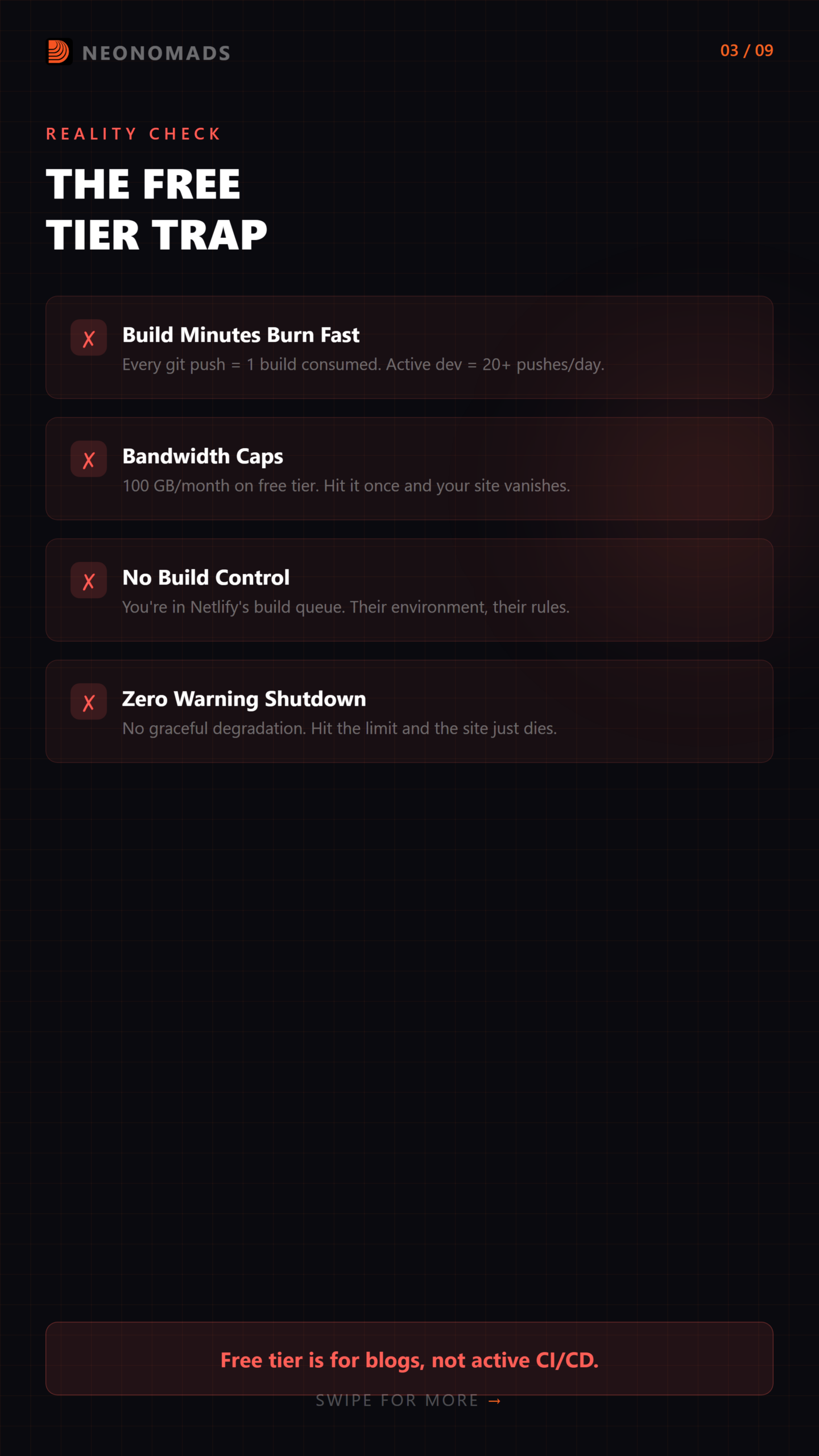
Netlify free tier build minutes: 300/month
Calculate:
300 ÷ 50 = 6 days
And that’s it!
Six days of active development before you get locked out. In reality, it is even less.
Some builds are more time-consuming, some days you push more than 30 times, and bandwidth limits start to get hit simultaneously. For me, it lasted about 3 to 4 days.
Free-tier is built for projects that occasionally update, as a blog would do. It is not designed to run real applications that continuously integrate and deploy during active development.
The worst part? When you hit the limit, nothing slows down or gives you a proper fallback. The site stops working completely. Your users do not find your app anymore. All they get is a Netlify error page and not yours.
The Realization
Here’s the part that tricked me:
I was already paying for a VM.
ConvergioAI’s backend, “convergioai-api,” was operating on a Contabo VPS at 161.97.123.100 on port 3002, managed by PM2. The server was already ready and running round-the-clock, handling API requests without any errors. However, it still had several unused capacities.
However, I was still relying on a third-party service for hosting, which was mainly a folder of static files or a “dist/directory.” Only HTML, JavaScript, CSS, and a few assets. That is all Netlify was doing which was to serve a folder. Yet it was failing due to artificial limits on the free tier.
It was at this point that the concern was obvious. Why was I using a managed platform to serve static files while I already had a server capable of doing the same?
The answer was straightforward. It should not be so!
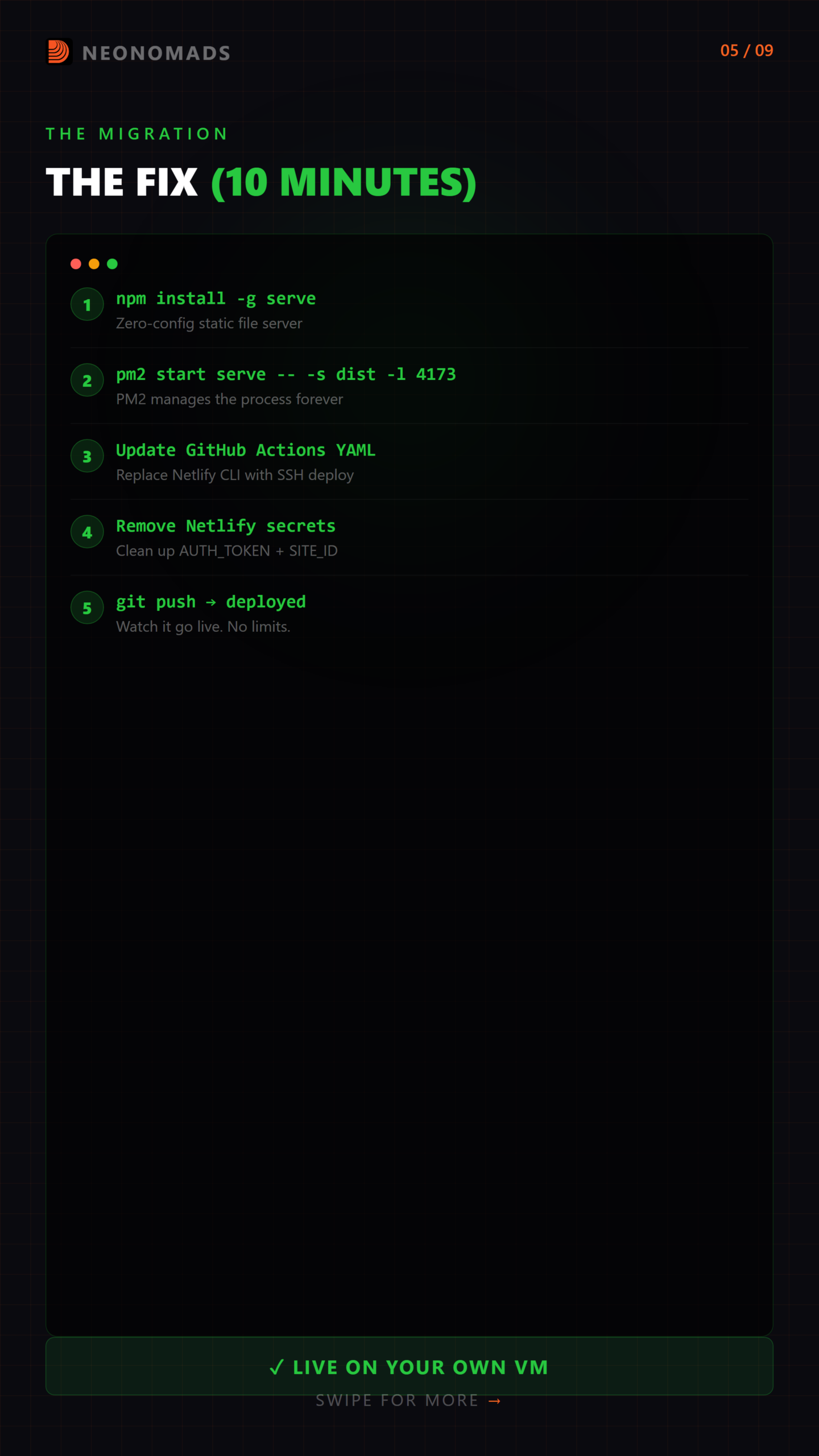
The Migration (10 Minutes)
Next, I considered recording the total time. The entire process took only about 10 minutes!
I started calculating from the moment I decided to fix it when the site was still live on the VM. So, here is what I actually did!
Step 1: Install “serve” on the VM (1 minute)
SSH into the VM and install serve globally:
The first step was to connect with VM using SSH and install “serve” globally:
ssh user@161.97.123.100 npm install -g serve“Serve” is a zero-configuration, deployment-ready static file server by Vercel. The same company innovated Next.js. It manages everything that you need out of the box:
- SPA routing (serves index.html for all routes using the -s flag)
- Correct MIME types
- Compression
- Clean URLs
- Basic security headers
It does exactly what is required to serve a Vite Build Output. Nothing exaggerated.
Step 2: Set Up PM2 Process (2 minutes)
PM2 is responsible to manage the backend, so this was just an additional process:
cd /path/to/convergioai-frontend # Build the project first npm install npm run build # Start serve with PM2 pm2 start serve --name convergioai-frontend -- -s dist -l 4173 # Save PM2 process list so it survives reboots pm2 saveHere is what each flag is responsible for:
- –name convergioai-frontend — adds a clear name to the process to make it identifiable in PM2
- -s — turns on SPA mode to make each route fall back to index.html
- dist directs serve which folder to host, in this case, it is Vite’s build output
- -l 4173 — defines the port on which the app will run
After this setup was done, running “pm2 list” shows both backend and frontend processes side by side:
+----+-------------------------+--------+-------+ | id | name | status | port | +----+-------------------------+--------+-------+ | 0 | convergioai-api | online | 3002 | | 1 | convergioai-frontend | online | 4173 | +----+-------------------------+--------+-------+Both backend and frontend operate on the same machine managed by PM2. It offers automated restarts on crashes with built-in log management.
Step 3: Update GitHub Actions Workflow (5 minutes)
This was the central process of the work. The existing workflow that was used by Netlify CLI for deployment was:
# BEFORE (Netlify deploy) - name: Deploy to Netlify run: netlify deploy --prod --dir=dist env: NETLIFY_AUTH_TOKEN: ${{ secrets.NETLIFY_AUTH_TOKEN }} NETLIFY_SITE_ID: ${{ secrets.NETLIFY_SITE_ID }}The new workflow is connecting to the VM over SSH. It pulls the latest code, builds the project and restarts the process as follows:
# AFTER (VM deploy) - name: Deploy to VM uses: appleboy/ssh-action@v1 with: host: 161.97.123.100 username: ${{ secrets.VM_USER }} key: ${{ secrets.VM_SSH_KEY }} script: | cd /path/to/convergioai-frontend git pull origin main npm install npm run build pm2 restart convergioai-frontendAnd that’s it!
A push triggers GitHub Actions that connect to the VM. Furthermore, it pulls the latest code, builds the project, and restarts the PM2 process. The whole deployment takes around 30 seconds.
Step 4: Remove Netlify Secrets from GitHub (1 minute)
Take a minute to clean things up in your GitHub repository settings.
Take a moment to clear things up in your GitHub repository settings. Here is what you need to do
Settings > Secrets and variables > Actions
Delete:
- NETLIFY_AUTH_TOKEN
- NETLIFY_SITE_ID
Add (if not already there):
- VM_USER
- VM_SSH_KEY
Leaving behind any unused secrets in your repository is risky and not really required. It is easy to skip them, and eventually it will end up in someone else’s hand mistakenly.
Step 5: Test It (1 minute)
# Make a small change, push it git add . git commit -m "test: verify VM deployment pipeline" git push origin mainGo to the GitHub Actions tab and watch how the workflow operate including the SSH step. Then open your browser to view http://161.97.123.100:4173.
The site loads instantly. Every route works as intended, and SPA routing will handle deep links without any errors. No need for any Netlify, limits or any dependency on a third-party platform.
The Architecture Before & After
Before: Split Infrastructure
+------------------+ | Developer | +--------+---------+ | git push | +--------v---------+ | GitHub Actions | +--------+---------+ | +--------------+--------------+ | | +---------v---------+ +----------v----------+ | Netlify Build | | SSH to VM | | + Netlify CDN | | | | (frontend: 4173) | | convergioai-api:3002 | +-------------------+ +----------------------+ Free tier Contabo VPS BUILD LIMITS $$ already paidHere you will find two deployment targets or two secrets or two failing points. And one of them stores artificial limits.
After: Unified Infrastructure
+------------------+ | Developer | +--------+---------+ | git push | +--------v---------+ | GitHub Actions | +--------+---------+ | SSH to VM | +--------v---------+ | Contabo VPS | | 161.97.123.100 | | | | convergioai-api | | port 3002 | | | | convergioai-fe | | port 4173 | +------------------+ $$ already paid ZERO extra cost NO build limitsEverything narrows down to a single setup, a single deployment target, one set of secrets, and a single server without any limits to hold you back.
What About HTTPS and Domains?
Now, the frontend is running on http://161.97.123.100:4173. That is exactly how it should be while developing or testing. However, it is not something that you would want to expose as-in during the production phase.
This is what a proper setup generally includes:
- A domain name mapped to your server
- HTTPS configured, typically using Let’s Encrypt
- A reverse proxy to route incoming traffic on ports 80 and 443 to the correct services
The next step is to set up nginx or Caddy as a reverse proxy. This is how:
# nginx example (simplified) server { listen 443 ssl; server_name app.yourdomain.com; ssl_certificate /etc/letsencrypt/live/app.yourdomain.com/fullchain.pem; ssl_certificate_key /etc/letsencrypt/live/app.yourdomain.com/privkey.pem; location / { proxy_pass http://localhost:4173; } location /api { proxy_pass http://localhost:3002; } }Or if you prefer Caddy (which handles SSL automatically):
app.yourdomain.com { handle /api/* { reverse_proxy localhost:3002 } handle { reverse_proxy localhost:4173 } }This altogether is perfect to turn into a topic for its dedicated post. With all fundamentals in place, adding HTTPS + domain routing is just a 15-minute job on top of this.
The Scoreboard
Metric Before (Netlify) After (Self-hosted VM) Monthly cost $0 (until limits hit, then $$$) $0 extra (VM already paid) Build minutes 300/month (free tier) Unlimited Bandwidth 100 GB/month (free tier) Unlimited (VPS allocation) Site goes down at limit? Yes, with Netlify error page N/A — no limits Deployment target Netlify CDN (separate infra) Same VM as backend Secrets needed NETLIFY_AUTH_TOKEN, NETLIFY_SITE_ID VM_USER, VM_SSH_KEY (shared with backend) Deploy time ~2-3 min (Netlify build queue) ~30 sec (direct SSH) Control Netlify’s platform, their rules Full root access Infra complexity 2 targets (Netlify + VM) 1 target (VM only) Migration time — 10 minutes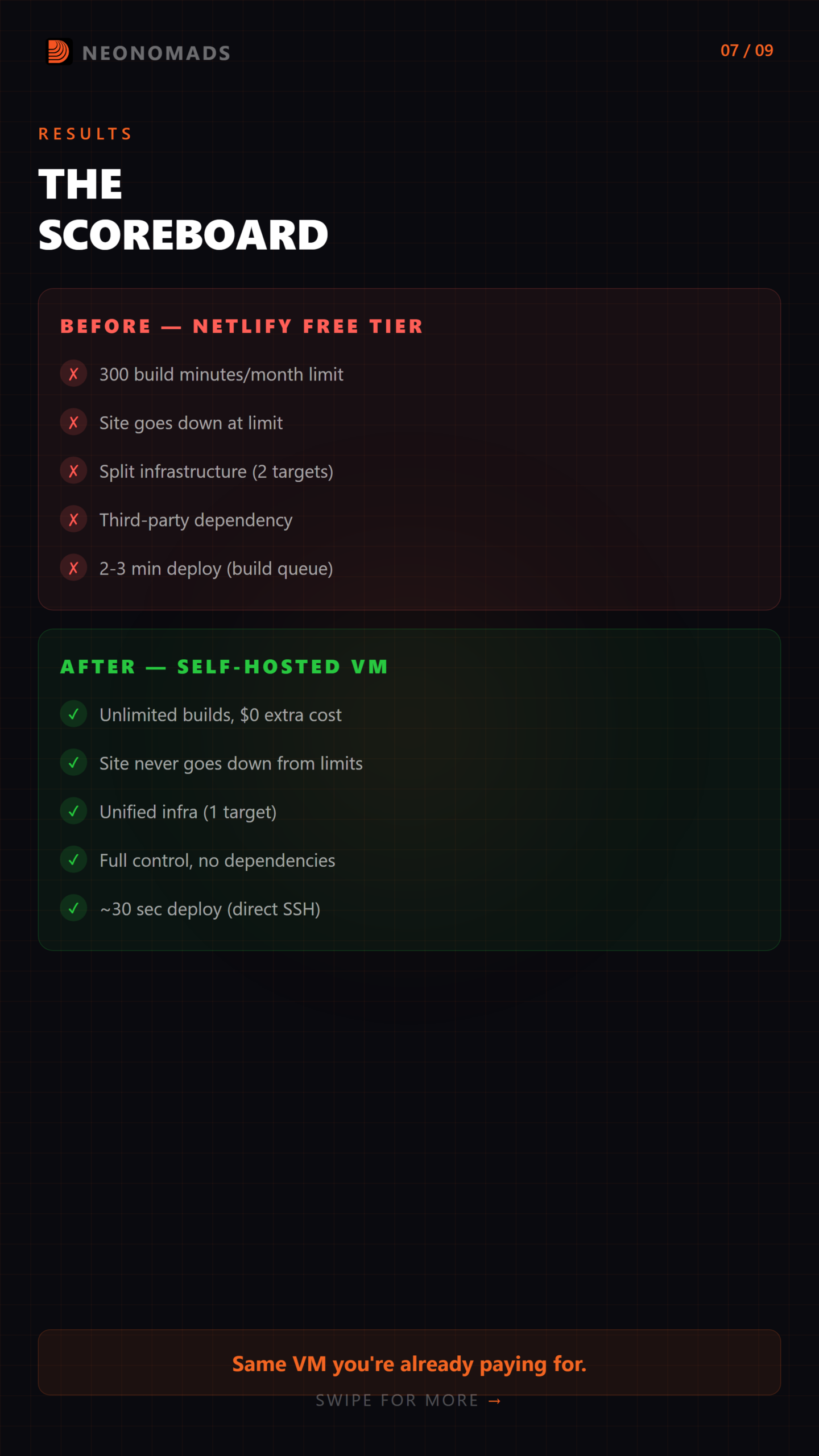
Key Takeaways
- Free tier of Netlify breaks down under active CI/CD usage. 20+ pushes each day and ~2–3 minutes per build, the 300 build minutes limit can be over in under a week. It is good for low-frequency deployments and not actively developed SPA applications.
- “serve” is an effective and lightweight solution to host static builds. A single npm package handles SPA routing (-s flag), compression, MIME types, clear URLs, and basic security headers. For serving a Vite dist/directory, it meets every requirement without any additional setup.
- An operating VM already offers hosting features. In my case, the Contabo VPS at 161.97.123.100 operating the backend on port 3002 had enough capacity to also serve the frontend. Using a different platform for status files added no real value.
- Hosting both frontend (port 4173) and backend (port 3002) on the same VM. This simplifies the entire architecture, reducing deployment targets. It reuses the same SSH credentials (VM_USER, VM_SSH_KEY) and allows management of both services through PM2 in a single space.
- The migration effort is less compared to its benefits. The entire process of “serve” installation, configuring PM2, and updating the GitHub Actions workflow took around 10 minutes. It removed build limits, reduced dependencies, and removed additional costs.
The Bigger Picture
This migration is not about downgrading Netlify. It works according to the way it is intended to. It deploys static sites and JAMstack applications with occasional updates. The issues arise when it is used for active development workflows, where each push triggers a build and runs into limits.
To narrow everything down, it has nothing to do with any specific tool. Before adding any new service, it is worth assessing what you already have. In this case, a VPS with available capacity was already continuously running. Using an external platform to serve static files added unwanted complexities.
At times, the right infrastructure decision is not about introducing something new. It is about recognizing that your existing setup is already enough!
Frequently Asked Questions
How long does landing page optimization take to show results?
Most SMBs start showing improvement in conversion in 4 to 8 weeks when structured schemes of performance measurement and optimisation are implemented.
What is a good landing page conversion rate for SMBs?
The average SMB landing pages should convert at between two and five percent, but competitive niche market campaigns that are highly optimised can reach performance levels higher than that.
Do SMBs need professional SEO services for landing page optimization?
In comparison with DIY techniques, data-driven insights, technical evaluation, and lasting testing are offered by professional SEO services. This allows the growth of conversions in an SMB to be accelerated in a more sustainable manner.
Need help implementing this strategy?
Take a Free Discovery call with Digitech Nomads.
Book a Free Strategy CallAbout Author

NeoNomads
AI avatars for the modern nomad. Innovation, adventure & community — powered by Digitech Nomads.
PrevPrevious12 Landing Page Optimization Tips to Increase Conversions for SMBs NextWhat If Your Email Inbox Had a Brain? An AI Email Agent Architecture I’m DesigningNextRecent Posts

Why I Killed My n8n Workflow and Replaced It With 500 Lines of TypeScript
April 1, 2026 No Comments
Digital Marketing Strategies for Small Businesses in India: A Practical Guide
March 26, 2026 No Comments