How I Built an AI Talking-Head Video Entirely With Code
How I Built an AI Talking-Head Video Entirely With Code — No Video Editor Needed
- March 10, 2026
- 5:30 am
I recently published a blog post on how I freed 106 GB of storage on a Windows 11 machine. The post included detailed scripts, screenshots, and real numbers from the cleanup process.
The content served as a good guide. However, I also wanted to repurpose it into a short-form video for platforms like Instagram Reels and YouTube Shorts. This brings me to the next topic on building an AI talking-head video with code.
Creating talking-head videos generally meant setting up a camera, fixing the lighting, recording yourself multiple times, and then the major time-consuming part, the editing. Every component works in sync. However, it takes a lot of time, effort, and energy.
So, I wanted something easier and straightforward.
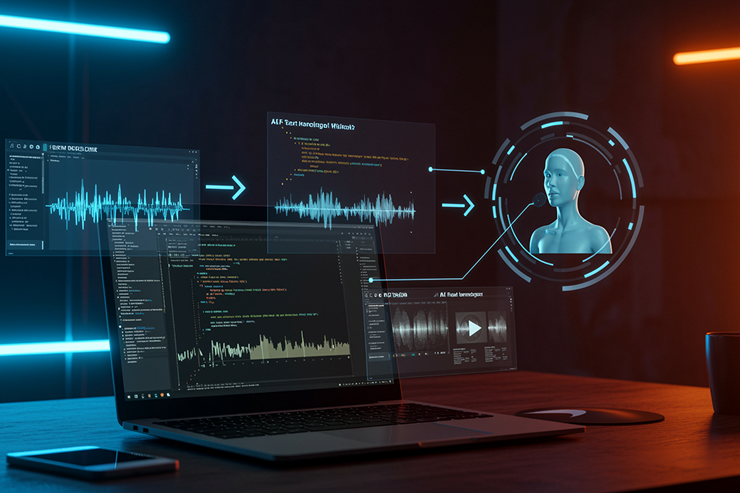
Instead of recording myself, I worked on building a talking-head video using just code. No Premier Pro, No After Effects, No CapCut, and No Video Editor. All I used was a script, a couple of AI tools, and a smooth workflow that I could run from my computer.
So, let me show you how exactly I approached turning text into voice, generating an AI avatar that speaks in a natural tone, and automatically exporting the final video.
Here’s the full process.
The Stack
Before I take you through the process, let me share the complete toolkit I used to simplify my work.
Each phase of the project operates on open-source tools or no-cost services that means the total cost that I had to bear was “NOTHING.”
Check out here how the stack breaks down:
Layer Tool What It Does Motion Graphics Remotion React-based video renderer — write JSX, get MP4 Voiceover edge-tts Microsoft’s neural TTS engine, free, sounds human Lip Sync lipsync Wav2Lip wrapper — animates a photo to match audio Face Detection face-alignment Detects facial landmarks for the lip sync model ML Runtime PyTorch Runs the Wav2Lip neural network (CPU mode) Video Processing ffmpeg via imageio-ffmpeg Audio conversion and video encoding Audio Processing librosa Mel spectrogram generation for lip syncPhase 1: Remotion — Video as React Components
My first thought process was: What if I treated this video like a web app?
I wanted to build everything with props, components, and logic, in the same way I would do in React, instead of dragging clips on a timeline.
Setting Up
I initiated by building a basic Node project, followed by installing Remotion:
mkdir disk-cleanup-video && cd disk-cleanup-video npm init -y npm install remotion @remotion/cli react react-dom npm install -D typescript @types/reactI just generated a programmable video framework in minutes.
The Architecture
Remotion is a powerful mental model that makes:
Each video frame works as a React render.
You get useCurrentFrame() the same way you would have used useState().
Time is more than just a timeline or turnaround. It is ONLY a number here.
This changes the entire outlook, as instead of thinking in clip-side use cases, I thought in terms of components.
The entire project was built as one component for every scene:
disk-cleanup-video/ ├── src/ │ ├── index.ts # registerRoot() │ ├── Root.tsx # Composition config (2460 frames, 30fps, 1080x1920) │ ├── DiskCleanupVideo.tsx # Master timeline — 8 <Sequence> components │ ├── scenes/ │ │ ├── Hook.tsx # Counter 99→27, red pulsing glow │ │ ├── TheScan.tsx # Terminal simulation with scan results │ │ ├── ClipchampReveal.tsx # Dramatic number zoom + screen shake │ │ ├── CleanupMontage.tsx # 9 items with checkmarks, progress bar │ │ ├── TheResult.tsx # Before/after split, counter 27→133 │ │ ├── TopTips.tsx # 3 tips sliding in from right │ │ ├── CTA.tsx # Pulsing "LINK IN BIO", bouncing arrow │ │ └── EndCard.tsx # Logo fade-in, branding │ └── components/ │ ├── GridBackground.tsx # Dark background + orange grid overlay │ ├── BrandBar.tsx # Top bar with "NEONOMADS" + logo │ ├── AnimatedCounter.tsx # Interpolated number counter │ ├── ProgressBar.tsx # Animated fill bar │ ├── CheckmarkItem.tsx # Spring-animated checkmark items │ ├── TerminalBlock.tsx # Terminal with sequential line reveal │ └── AvatarOverlay.tsx # Circular talking head overlay ├── public/ │ ├── dt-logo.png │ ├── avatar/ # Lip-synced MP4 clips per scene │ └── voiceover/ # TTS audio per scene └── remotion.config.tsKey Remotion Concepts I Used
Most of the heavy lifting was done by a couple of core APIs.
interpolate() — The Workhorse
It helped in mapping out a frame range to any value range, like:
// Counter spins from 99 to 27 over first 40 frames const counterValue = interpolate(frame, [0, 40], [99, 27], { extrapolateRight: "clamp", });spring() — Natural Motion
I used physics-based animations to bring some realistic movement instead of linear easing. Here is what I did:
// Text slams in with bounce const textSlam = spring({ frame: frame - 40, fps, config: { damping: 12, stiffness: 200 }, });<Sequence> — Scene Timing
It helps you define when a scene will appear and for how long. Instead of editing timeline-based, I had controlled everything through frame numbers. This is how it happened:
<Sequence from={0} durationInFrames={150} name="Hook"> <Hook /> <Audio src={staticFile("voiceover/scene-01-hook.mp3")} /> </Sequence>The Render
After everything was in line:
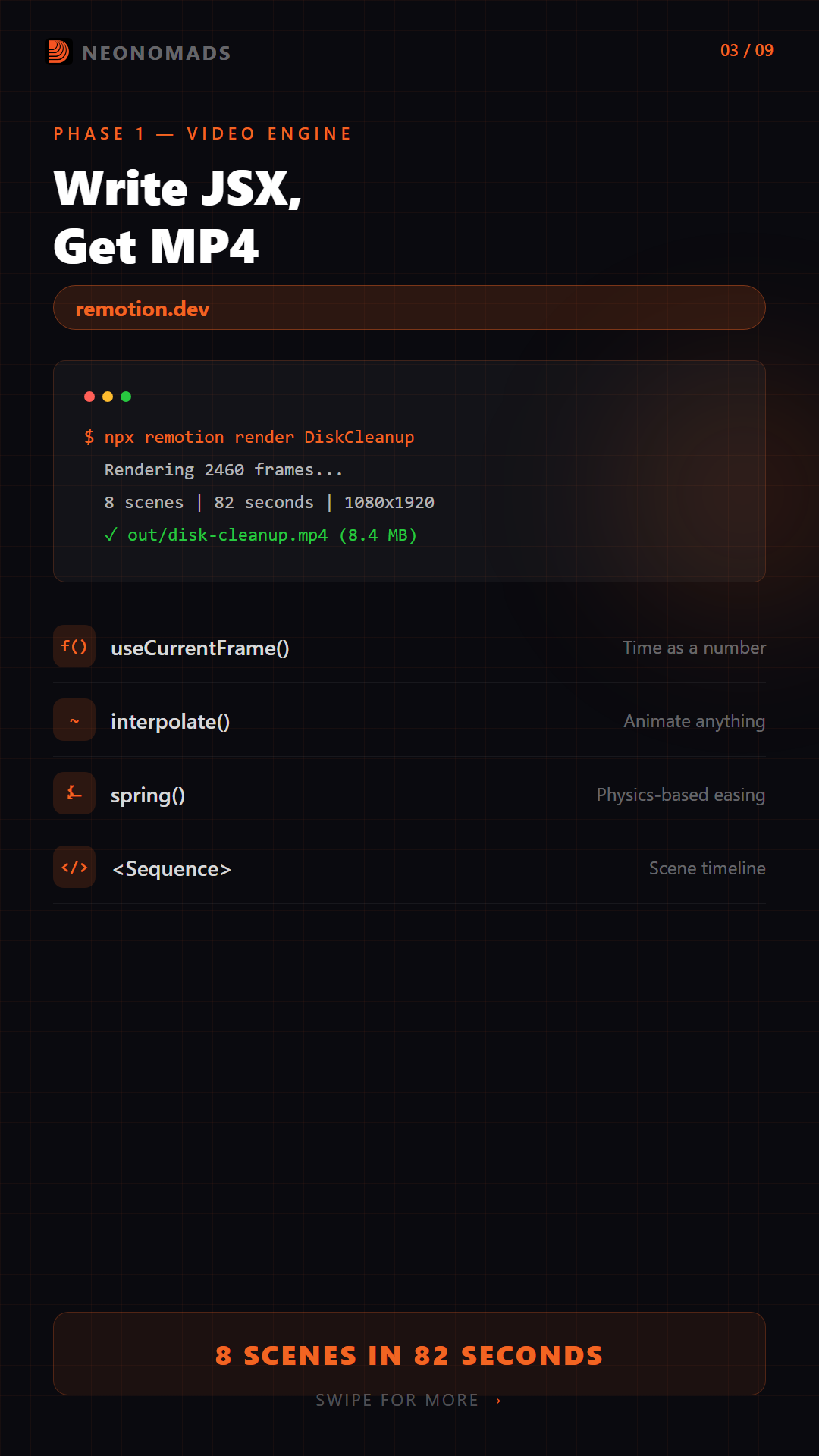
# Preview in browser (hot reload!) npm run dev # Render to MP4 npx remotion render DiskCleanup out/disk-cleanup.mp4I got:
- 8 scenes
- 82 seconds
- 1080×1920 vertical resolution
Although the motion graphics appeared great with animated counters, progress bars, terminal simulations, and smooth transitions, something was definitely missing.
It was the voiceover, without which it appeared like a refined slideshow.
Phase 2: Neural Voiceover with edge-tts
The motion graphics looked great, however, the video felt incomplete.
I needed to add a voice.
Before selecting a tool, I checked at a couple of options:
Option Verdict Record myself I wanted a repeatable pipeline, not a mic session ElevenLabs Great quality, but paid API Coqui TTS Open source voice cloning — failed, needs Python <3.12 edge-tts Microsoft’s neural TTS, free, sounds naturalThe Dead End: Coqui TTS
Then this happened:
Initially, I tried Coqui TTS since I liked the idea of cloning my voice. I got myself a 8-second clip reference that was ready to go.
Then I got this:
pip install TTS ERROR: Package requires Python <3.12, >=3.9My system operated Python 3.12.
Coqui was not updated to support it, and that was a major roadblock.
Instead of downgrading Python and rebuilding my setup, I moved on.
edge-tts — The Winner
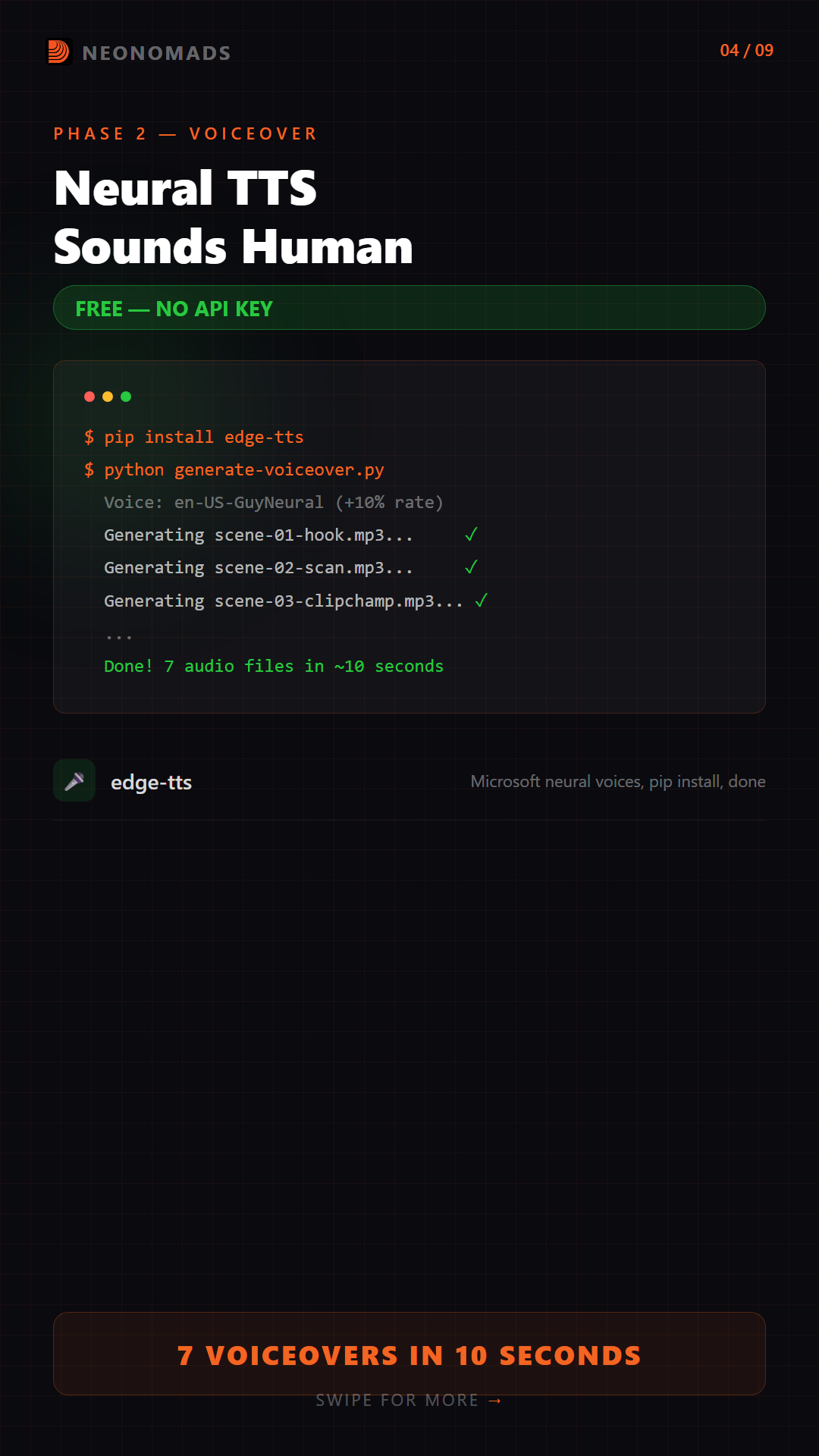
edge-tts is a Python tool that helps you use the built-in text-to-speech voices of Microsoft Edge. It’s free, requires no API key, and the neural voices are surprisingly good.
pip install edge-ttsThe Voiceover Script
I did not spend time generating a long audio file. I divided the script into scenes to match my Remotion structure. Here is the script I had used:
# generate-voiceover.py import asyncio import edge_tts import os VOICE = "en-US-GuyNeural" # Male, natural-sounding OUTPUT_DIR = os.path.join(os.path.dirname(__file__), "audio") SCENES = [ ("scene-01-hook", "My Windows laptop had 27 gigs of free space. " "Watch what happened next."), ("scene-02-scan", "I wrote a PowerShell script to scan every folder " "on my system. And the results were INSANE."), ("scene-03-clipchamp", "Clipchamp. A video editor that comes " "PRE-INSTALLED with Windows. Was hiding thirty seven gigabytes " "of cache. THIRTY SEVEN."), ("scene-04-montage", "Gradle cache, ten gigs, gone. Windows Update " "cache, eight point seven gigs, gone. Then CapCut, Android SDK, " "VirtualBox VMs I forgot about, Chrome caches across TEN browser " "profiles, twelve orphaned updater folders, and a WSL virtual disk " "that only grows but never shrinks."), ("scene-05-result", "Twenty seven gigs... to one hundred and thirty " "three gigs. That's one hundred and six gigabytes freed. " "In ONE session."), ("scene-06-tips", "Three things I learned. One, check Clipchamp. " "It ships with Windows and silently eats your storage. Two, " "developer caches add up fast. Gradle, npm, Yarn, set a reminder " "to clean them every few months. Three, WSL virtual disks only " "grow, never shrink. You have to manually compact them " "with diskpart."), ("scene-07-cta", "I published every single script so you can do " "this too. Link in bio. Follow for more tech that actually " "saves you time."), ] async def generate(): os.makedirs(OUTPUT_DIR, exist_ok=True) for name, text in SCENES: out_path = os.path.join(OUTPUT_DIR, f"{name}.mp3") print(f"Generating {name}...") tts = edge_tts.Communicate(text, VOICE, rate="+10%") await tts.save(out_path) print(f" -> {out_path}") print(f"\nDone! Generated {len(SCENES)} audio files.") if __name__ == "__main__": asyncio.run(generate())Then I ran:
python generate-voiceover.py # Generates 7 MP3 files in ~10 secondsTip: Choosing the rate = “+10%” can speed up the voice a bit, making it appear like a real person presenting it instead of sounding robotic.
The Outcome: Got seven scenes. Seven MP3 files. Done in seconds.
Phase 3: AI Lip Sync — The Gauntlet
If you ask me, the toughest part of my project is, for sure, this phase, which got me wondering about reaching the finish line.
My aim was to get a talking-head avatar that actually lip-syncs to the audio and not just any motion graphics with a voice.
All I had was a single AI-generated photo of myself.
All that I had was one AI-generated photo of myself. And the goal theoretically was: To make the photo talk.
In reality, it got me into a struggle with half the internet.
The Tool Graveyard
Before landing on the results, I tried six different tools. And this is how all went:
Tool Why It Failed SadTalker Not pip-installable, needs git clone + Python 3.10 LivePortrait Requires NVIDIA GPU (I have none) MuseTalk CUDA-only, no CPU fallback EchoMimic Same — GPU required video-retalking Needs GPU + old Python lipsync Works on Python 3.12 + CPUSeveral lip-sync tools assumes that you have:
- An NVIDIA GPU
- CUDA installed
- An older Python version
But for me, I had nothing!
The one tool that I had on my setup was LipSync. It is a clean wrapper around Wav2Lip that mainly installs through pip.
Although things were not smooth.
Installation Adventure
Getting this to run wasn’t one step. It was five.
Step 1: pip install lipsync fails
The problem here was av dependency that tried compiling from source required C headers.
The general fix was installing a prebuilt wheel first and then installing lipsync without any dependencies, like:
pip install av pip install lipsync --no-deps pip install torch face-alignment opencv-python librosa scipy scikit-imageSo, got one problem down.
Step 2: ffmpeg Not Found
The lipsync library calls ffmpeg directly via subprocess, but ffmpeg wasn’t in my system PATH.
I had imageio-ffmpeg, which bundles a working ffmpeg binary. For this, I created a smaller shim at the top of my script for exposing it:
import imageio_ffmpeg import shutil _ffmpeg_exe = imageio_ffmpeg.get_ffmpeg_exe() _ffmpeg_dir = os.path.dirname(_ffmpeg_exe) _ffmpeg_link = os.path.join(_ffmpeg_dir, "ffmpeg.exe") if not os.path.exists(_ffmpeg_link): shutil.copy2(_ffmpeg_exe, _ffmpeg_link) os.environ["PATH"] = _ffmpeg_dir + os.pathsep + os.environ.get("PATH", "")This resolved the issue I faced with ffmpeg without installing anything system-wide.
Step 3: Download the Wav2Lip Model (~145MB)
The library doesn’t ship with weights. You have to download them manually.
pip install gdown gdown 13Ktexq-nZOsAxqrTdMh3Q0ntPB3yiBtv -O weights/wav2lip_gan.pthStep 4: The Model Name Trap
Use the model name wav2lip, and not wav2lip_gan (even though the file is named wav2lip_gan.pth). Took a KeyError to figure that out.
Step 5: Missing Cache Directory
The library attempted to write face-detection cache data to a directory that did not exist.
Result: FileNotFoundError.
Fix: Ensure to create the directory manually before running the script.
The Lip Sync Script
After sorting out everything, here is the script that handled it all:
# generate-lipsync.py import os import sys import glob import shutil import imageio_ffmpeg # Make ffmpeg available in PATH _ffmpeg_exe = imageio_ffmpeg.get_ffmpeg_exe() _ffmpeg_dir = os.path.dirname(_ffmpeg_exe) _ffmpeg_link = os.path.join(_ffmpeg_dir, "ffmpeg.exe") if not os.path.exists(_ffmpeg_link): shutil.copy2(_ffmpeg_exe, _ffmpeg_link) os.environ["PATH"] = _ffmpeg_dir + os.pathsep + os.environ.get("PATH", "") SCRIPT_DIR = os.path.dirname(os.path.abspath(__file__)) AUDIO_DIR = os.path.join(SCRIPT_DIR, "audio") VIDEO_DIR = os.path.join(SCRIPT_DIR, "video") WEIGHTS_DIR = os.path.join(SCRIPT_DIR, "weights") AVATAR_IMAGE = "path/to/your/avatar.jpeg" CHECKPOINT = os.path.join(WEIGHTS_DIR, "wav2lip_gan.pth") def generate(audio_path, output_path): from lipsync import LipSync lip = LipSync( model='wav2lip', # NOT 'wav2lip_gan' — that's only the filename checkpoint_path=CHECKPOINT, nosmooth=True, device='cpu', cache_dir=os.path.join(SCRIPT_DIR, 'cache'), img_size=96, save_cache=True, ) lip.sync(AVATAR_IMAGE, audio_path, output_path) def main(): os.makedirs(VIDEO_DIR, exist_ok=True) os.makedirs(WEIGHTS_DIR, exist_ok=True) os.makedirs(os.path.join(SCRIPT_DIR, 'cache'), exist_ok=True) audio_files = sorted(glob.glob(os.path.join(AUDIO_DIR, "scene-*.mp3"))) filter_name = sys.argv[1] if len(sys.argv) > 1 else None if filter_name: audio_files = [f for f in audio_files if filter_name in os.path.basename(f)] for i, audio_path in enumerate(audio_files): name = os.path.splitext(os.path.basename(audio_path))[0] output_path = os.path.join(VIDEO_DIR, f"{name}.mp4") print(f"[{i+1}/{len(audio_files)}] Processing {name}...") generate(audio_path, output_path) if __name__ == "__main__": main() python generate-lipsync.py # Generates 7 talking-head MP4s (1024x1024, 25fps) # ~30 seconds per scene on CPUThe outcome:
- No GPU
- No CUDA
- Just CPU mode
Each scene took about 30 seconds to render.
Phase 4: Compositing — Bringing It All Together
This is the last step, and until now, everything existed differently:
- Motion graphics (Remotion)
- Voiceover MP3 files (edge-tts)
- Lip-synced avatar clips (Wav2Lip)
This is the phase to combine everything, and the goal was simple:
Placing a talking-head avatar on top of the animated scenes and syncing it with the voiceover.
The AvatarOverlay Component
I then built a dedicated overlay components to keep things reusable and clean:
// src/components/AvatarOverlay.tsx import { Video, staticFile, useCurrentFrame, interpolate } from "remotion"; type AvatarSize = "prominent" | "small"; const SIZES = { prominent: { width: 360, bottom: 180, right: 360 }, small: { width: 240, bottom: 120, right: 40 }, }; export const AvatarOverlay: React.FC<{ src: string; size?: AvatarSize; }> = ({ src, size = "prominent" }) => { const frame = useCurrentFrame(); const { width, bottom, right } = SIZES[size]; const opacity = interpolate(frame, [0, 10], [0, 1], { extrapolateRight: "clamp", }); return ( <div style={{ position: "absolute", bottom, right, width, height: width, borderRadius: "50%", overflow: "hidden", border: "4px solid rgba(242, 101, 34, 0.8)", boxShadow: "0 0 30px rgba(242, 101, 34, 0.3)", opacity, zIndex: 100, }}> <Video src={staticFile(src)} style={{ width: "100%", height: "100%", objectFit: "cover" }} /> </div> ); };Here are a couple of things component handles:
- Circular crop
- Border and glow styling
- Fade-in animation
- Two size presets
- Clean positioning
I did not place video layers in an editor manually. I treated the avatar like any other React component.
Wiring It Up
There are two additions in each scene:
- The voiceover audio
- The avatar overlay
Here is how it appeared in the primary timeline:
// DiskCleanupVideo.tsx <Sequence from={0} durationInFrames={150} name="Hook"> <Hook /> <Audio src={staticFile("voiceover/scene-01-hook.mp3")} /> </Sequence>Inside each scene component:
// scenes/Hook.tsx <BrandBar /> <AvatarOverlay src="avatar/scene-01-hook.mp4" size="prominent" />I generally used two sizes based on what was happening on the screen:
- Prominent (360px)
I used this size when the primary focus was the avatar, including hook, tips, reveal, and CTA.
- Small (240px)
I used the small size when the visuals mattered the most during terminal output or montage scenes.
This made the layout well-balanced, avoiding blocking the main content.
Final Render
After everything got wired together:
npx remotion render DiskCleanup out/disk-cleanup-avatar.mp4 # 2460 frames rendered # Output: 10 MB MP4, 82 seconds, 1080x1920The final video came together including:
- Motion graphics
- Talking-head avatar
- Synced voiceover
- Vertical format
- Fully code-driven
Final Outcome
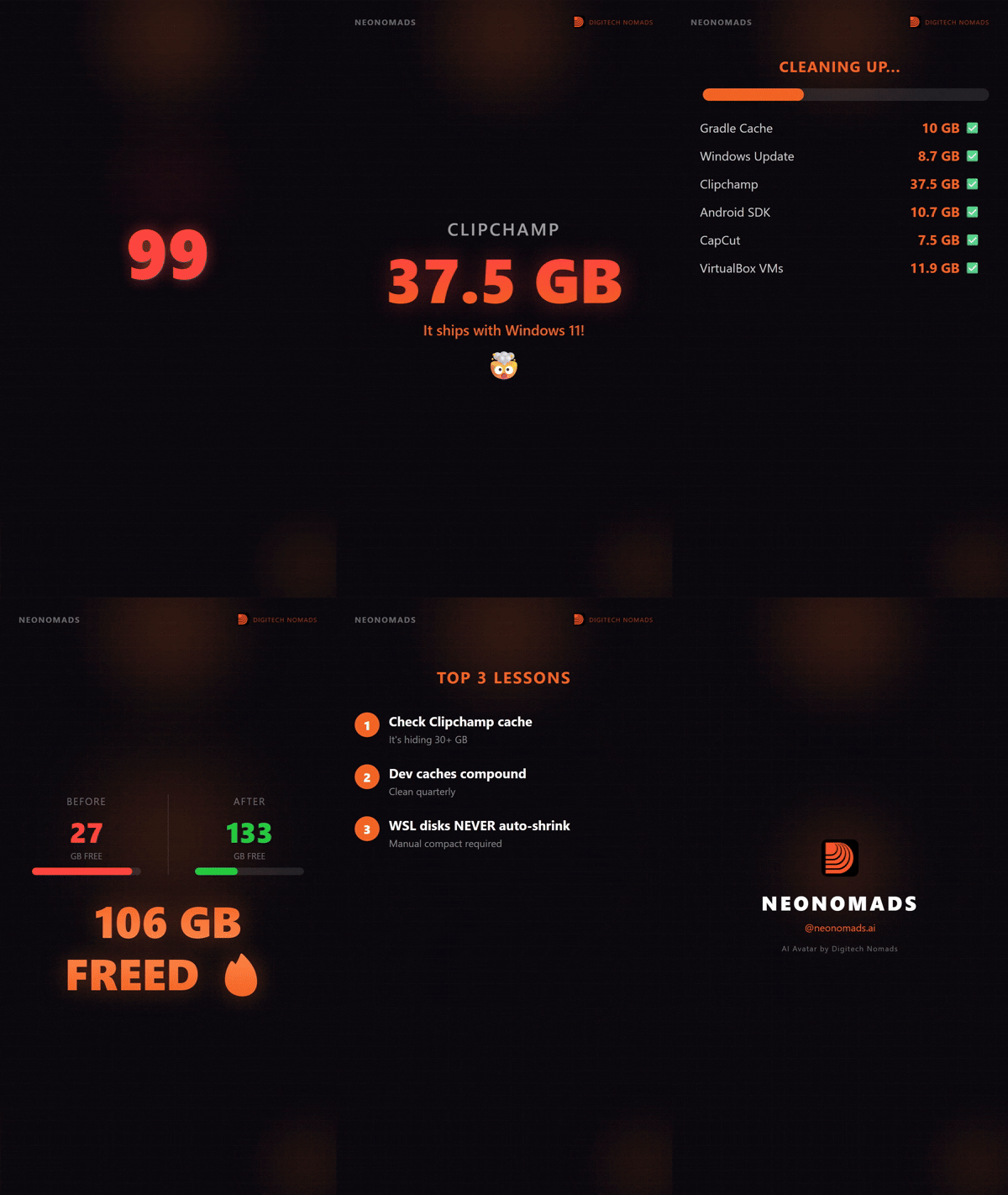
- Output: Full video with motion graphics + talking head + voiceover
- Size: ~10 MB
- Length: 82 seconds
- Resolution: 1080×1920
All had been generated programmatically.
The Final Pipeline
This is how the complete system appeared from start to end:
video-script-shorts.md (scene text) │ ▼ edge-tts (Python) → 7 MP3 voiceover files │ ▼ lipsync/Wav2Lip (Python) → 7 MP4 talking head clips + avatar photo (1024x1024, 25fps) │ ▼ Remotion (React/TypeScript) → Final 1080x1920 MP4 + motion graphics scenes (82 seconds, 10 MB) + voiceover audio + avatar overlayTotal time I had to spend: One session. No video editor ever opened.
Tools & Repositories
Here is the comprehensive list of all tools that I used in this project with links
updated:
Video Engine
Package Purpose Install Remotion React-based video renderer npm install remotion @remotion/cli React 19 UI framework npm install react react-dom TypeScript Type safety npm install -D typescriptVoiceover (Python)
Package Purpose Install edge-tts Microsoft neural TTS pip install edge-ttsLip Sync (Python)
Package Purpose Install lipsync Wav2Lip wrapper pip install lipsync –no-deps PyTorch ML runtime (CPU) pip install torch face-alignment Facial landmark detection pip install face-alignment OpenCV Image processing pip install opencv-python librosa Audio → mel spectrogram pip install librosa scipy Scientific computing pip install scipy scikit-image Image utilities pip install scikit-image av FFmpeg Python bindings pip install av imageio-ffmpeg Bundled ffmpeg binary pip install imageio-ffmpegModel Weights
File Source Size wav2lip_gan.pth Google Drivevia mowshon/lipsync 145 MB s3fd face detection Auto-downloaded by face-alignment 92 MB
What Didn’t Work (The Honest Part)
The entire process was not a clean or linear one. This is what I tried and where I
failed:
- Coqui TTS for voice cloning — I tried cloning a voice using a reference
video. But instead, got this error: Package is abandoned, needs Python <3.12. Dead - SadTalker — A popular open-source talking head software. Using it landed
me on this error: Not pip-installable, requires git clone, Python 3.10, and specific CUDA versions. Too
fragile. - LivePortrait, MuseTalk, EchoMimic — All require NVIDIA GPUs. My laptop
did not have one as it used only integrated graphics for non-starters. - pip install lipsync directly — Fails because the av dependency (version
14.x) isn’t available as a pre-built wheel. Had to install av 16.x separately, then lipsync
–no-deps. - I used the model name as wav2lip_gan as the file was called wav2lip_gan. But the
actual model name to be used is wav2lip. This small difference took me 30 minutes of confusion and
debugging. - I overlooked creating the cache/folder. The lipsync tool tries to save the
results for face detection. However, the folder is not auto-created. This prompted FileNotFoundError.
Lesson Learned: Open-source ML tools are powerful. However, they are not
always easy to work with. So, be prepared to spend time on installation, error fixing, and managing issues over
compatibility rather than the real building phase. In reality, the majority of time went into setup and
debugging instead of the real creative work.
Key Takeaways
- Remotion is perfect for developers who prefer to use code over video editors.
Those comfortable with React can programmatically build videos and the interpolate() +
spring() combination that handles motion design. - edge-tts offers one of the ideal free text-to-speech options. Neural
voices of Microsoft sound natural. It needs no API keys, and it quickly generates audio. The
en-US-GuyNeural voice with a bit of speed increase works quite well. - Wav2Lip remains effective throughout, even if the ecosystem is
fragmented. The original repository is no longer maintained, but the lipsync wrapper by mowshon offers the
best way to use it today. - CPU inference works fine for short video segments. A 5 to 10 second scene
generally processes in about 30 seconds on CPU, making small multi-scene videos feasible even without a
GPU. - A repeatable workflow is created with the use of code as a video editor.
Updating the script and rerunning a couple of commands generates a new video without timelines, project file
confusion, or manual edits. - Reliability is improved through bundling ffmpeg. Tools like
imageio-ffmpeg ensure that ffmpeg is available and can be added to the runtime path instead of
depending on system installations.
Quick-Start: Reproduce This Entire Pipeline
So need a quick push to start building your own? Here are a few simple steps:
# 1. Create the Remotion project mkdir my-video && cd my-video npm init -y npm install remotion @remotion/cli react react-dom npm install -D typescript @types/react # 2. Set up Python tools pip install edge-tts pip install av imageio-ffmpeg pip install lipsync --no-deps pip install torch face-alignment opencv-python librosa scipy scikit-image # 3. Download Wav2Lip model weights pip install gdown mkdir -p lipsync/weights gdown 13Ktexq-nZOsAxqrTdMh3Q0ntPB3yiBtv -O lipsync/weights/wav2lip_gan.pth # 4. Generate voiceover python generate-voiceover.py # 5. Generate lip sync clips python generate-lipsync.py # 6. Copy assets to Remotion project cp lipsync/video/*.mp4 my-video/public/avatar/ cp lipsync/audio/*.mp3 my-video/public/voiceover/ # 7. Render cd my-video npx remotion render MyComposition out/video.mp4Frequently Asked Questions
How often should a local business post on social media for the best results?
A goal of regular posts 3-5 times per week will ensure that your business is visible and engaged, and will help the algorithms see your business as active and relevant.
What platforms are most effective for local businesses starting social media marketing?
Facebook, Instagram, and TikTok are good starting points because they offer strong local coverage, discovery, and easy customer access.
How long does it take for social media strategies to show results for local businesses?
Within 60-90 days of targeted, regular social media activity, most local businesses begin to see significant engagement and early customer interest.
Need help implementing this strategy?
Take a Free Discovery call with Digitech Nomads.
Book a Free Strategy CallAbout Author

NeoNomads
AI avatars for the modern nomad. Innovation, adventure & community — powered by Digitech Nomads.
PrevPreviousHow I Freed 106 GB on My Windows 11 Machine Using AI-Powered Scripts Next12 Landing Page Optimization Tips to Increase Conversions for SMBsNextRecent Posts

Why I Killed My n8n Workflow and Replaced It With 500 Lines of TypeScript
April 1, 2026 No Comments
Digital Marketing Strategies for Small Businesses in India: A Practical Guide
March 26, 2026 No Comments