How I Freed 106 GB on My Windows 11 Machine Using AI-Powered Scripts
How I Freed 106 GB on My Windows 11 Machine Using AI-Powered Scripts
- March 5, 2026
- 6:38 am
Phase 1: The Reconnaissance Scan
I need better clarity before deleting anything. Removing files at random breaks applications and does not address the root issue. The best approach was extremely straightforward: Measure first, clean later.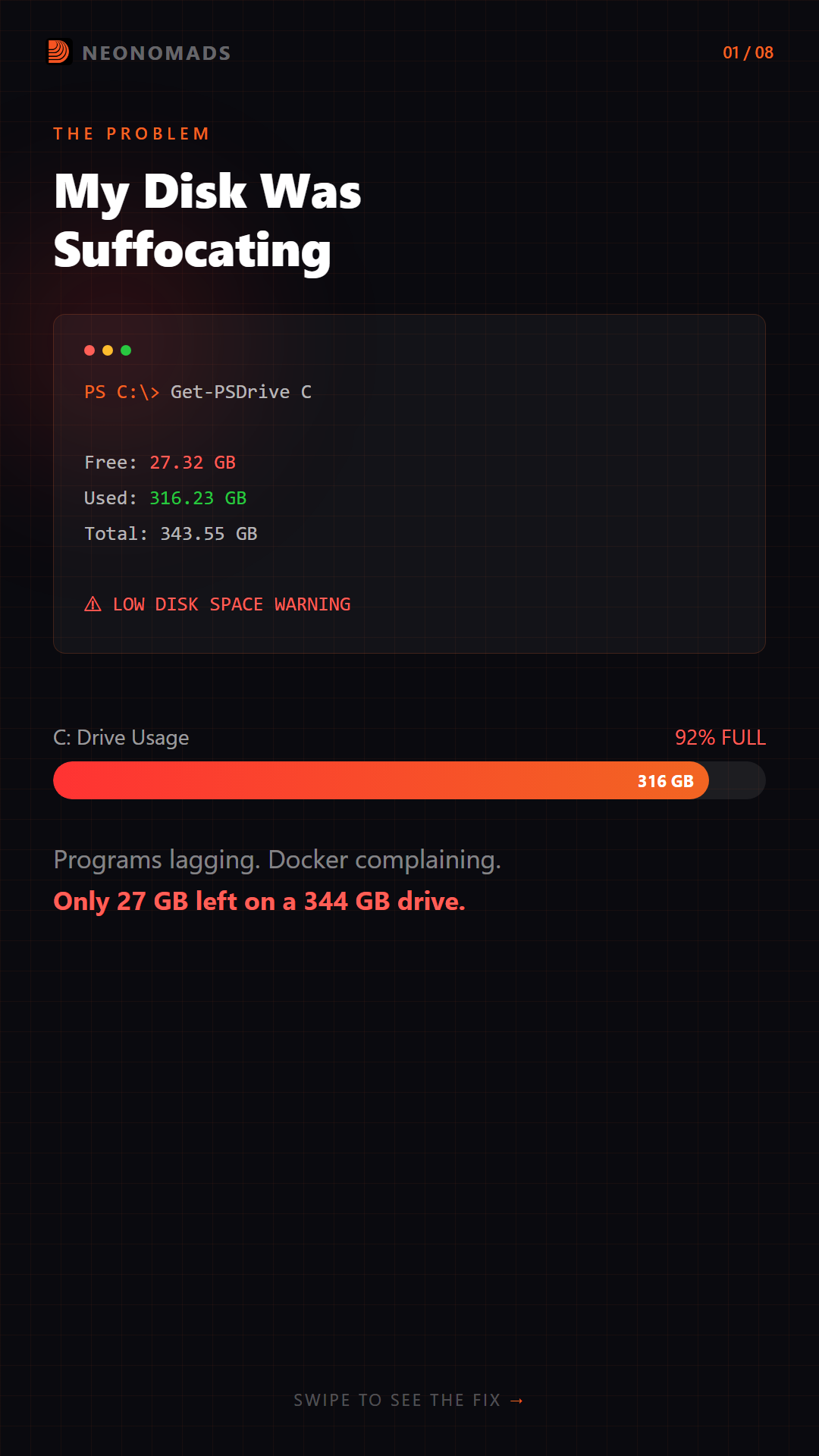
To find out where my storage was going, I created a PowerShell scanning script that checks common space-consuming locations in Windows OS. These include developer tool caches, system temp folders, Windows logs, browser caches, and the Downloads folder.
The script calculates the amount of space each directly uses and reports the results in MB or GB. This quick scan offers a complete overview of the folders that are slowly consuming the most disk space.
The Scanner Script
This script helps to scan multiple common directories known to store temporary files and cache data. It never deletes anything. Instead measures folder sizes and reports where storage is going. # disk-scanner.ps1 # Scans common cache/temp directories and reports sizes # Usage: Change $UserProfile if your username differs $targets = @( @{Name='User Temp'; Path=$env:TEMP}, @{Name='System Temp'; Path='C:\Windows\Temp'}, @{Name='Windows Update Cache'; Path='C:\Windows\SoftwareDistribution\Download'}, @{Name='npm cache'; Path="$env:LOCALAPPDATA\npm-cache"}, @{Name='pip cache'; Path="$env:LOCALAPPDATA\pip\Cache"}, @{Name='nuget cache'; Path="$env:LOCALAPPDATA\NuGet"}, @{Name='Yarn cache'; Path="$env:LOCALAPPDATA\Yarn\Cache"}, @{Name='pnpm store'; Path="$env:LOCALAPPDATA\pnpm-store"}, @{Name='Gradle cache'; Path="$env:USERPROFILE\.gradle\caches"}, @{Name='VS Code Extensions'; Path="$env:USERPROFILE\.vscode\extensions"}, @{Name='Chrome Cache'; Path="$env:LOCALAPPDATA\Google\Chrome\User Data\Default\Cache"}, @{Name='Edge Cache'; Path="$env:LOCALAPPDATA\Microsoft\Edge\User Data\Default\Cache"}, @{Name='Crash Dumps'; Path="$env:LOCALAPPDATA\CrashDumps"}, @{Name='Windows Logs'; Path='C:\Windows\Logs'}, @{Name='Windows Prefetch'; Path='C:\Windows\Prefetch'}, @{Name='Thumbnails'; Path="$env:LOCALAPPDATA\Microsoft\Windows\Explorer"}, @{Name='Windows Error Reports'; Path="$env:LOCALAPPDATA\Microsoft\Windows\WER"}, @{Name='Downloads'; Path="$env:USERPROFILE\Downloads"} ) Write-Output "=== Space Usage by Directory ===" foreach ($t in $targets) { if (Test-Path $t.Path) { try { $size = (Get-ChildItem -Path $t.Path -Recurse -Force -ErrorAction SilentlyContinue | Measure-Object -Property Length -Sum -ErrorAction SilentlyContinue).Sum $sizeMB = [math]::Round($size/1MB, 0) $sizeGB = [math]::Round($size/1GB, 2) if ($sizeMB -gt 5) { Write-Output ("{0,-30} {1,8} MB ({2} GB)" -f $t.Name, $sizeMB, $sizeGB) } } catch {} } } $drive = Get-PSDrive C $freeGB = [math]::Round($drive.Free/1GB, 2) $usedGB = [math]::Round($drive.Used/1GB, 2) Write-Output "`nC: Drive - Free: $freeGB GB | Used: $usedGB GB"What I Found
The scan highlighted several cache directories that are consuming a lot of space. These folders silently start growing without any obvious warning.Target Size Gradle cache 10.2 GB Windows Update Cache 9.1 GB npm cache 1.5 GB Yarn cache 1.5 GB User Temp 274 MB Edge Cache 233 MB Crash Dumps 36 MB Even before working out with larger apps, over 22 GB of storage was linked under caches alone.
Verdict: Caches were the simplest and safest place to start.
Phase 2: Quick Wins — Cache Purge
Once the major cache folders were identified, my next step involved cleaning them.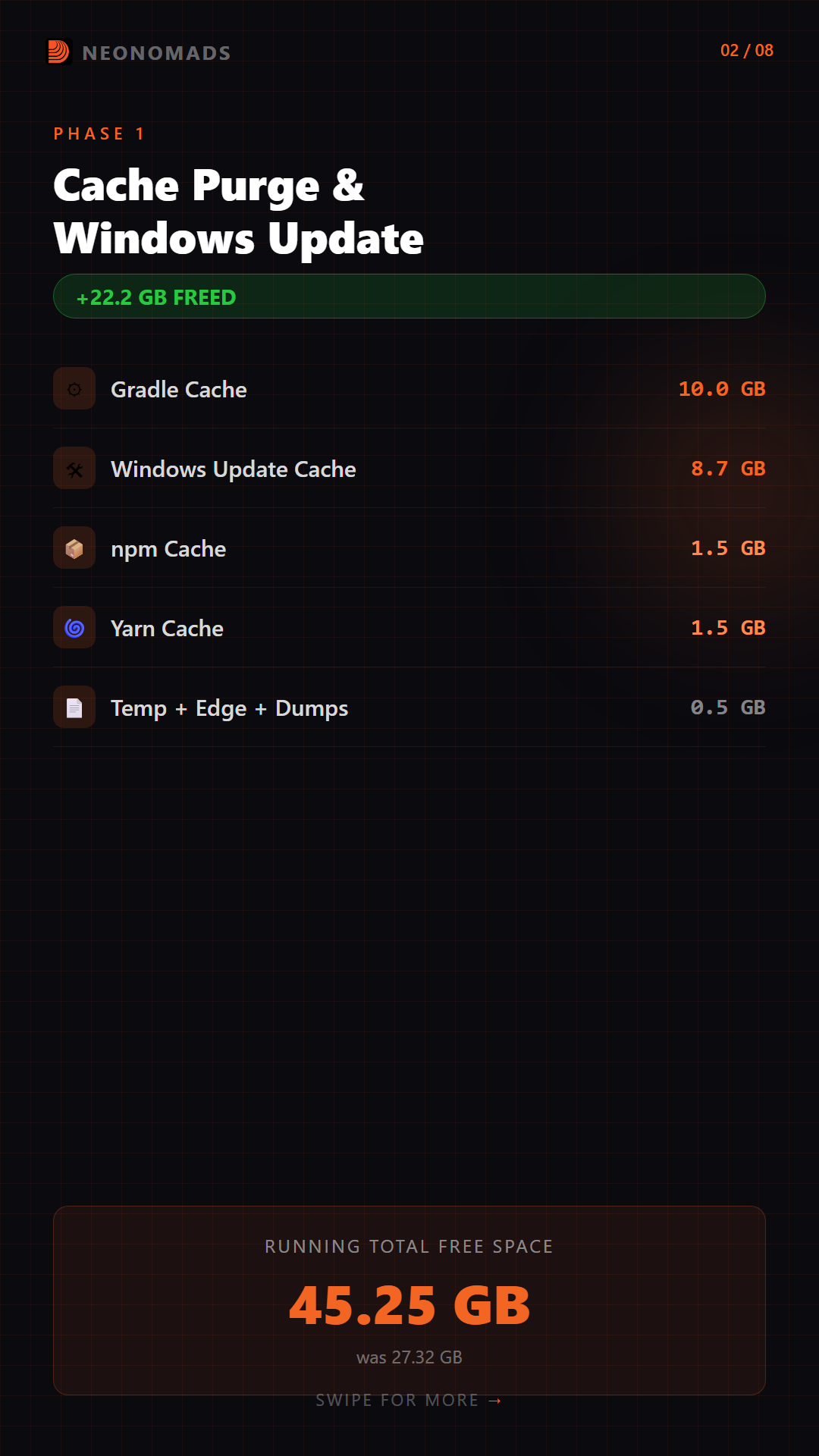
Although cache files are temporary in nature, they help speed up builds, installs, and browsing. However, they start consuming storage over time. Clearing them is safe since applications can be regenerated whenever required.
The script I have shared removes cache files from common developer tools, and Windows locations, including Gradle, npm, Yarn, browser cache, temp files, and crash dumps.
The Cache Cleaner Script
This script removed common developer and system caches. It measures every directory before and after cleanup, showing exactly the total space reclaimed. # cache-cleaner.ps1 # Cleans developer caches: Gradle, npm, Yarn, Edge, Temp, Crash Dumps # Run with: powershell -ExecutionPolicy Bypass -File cache-cleaner.ps1 function Clean-Directory { param([string]$Name, [string]$Path) if (Test-Path $Path) { $before = (Get-ChildItem -Path $Path -Recurse -Force -ErrorAction SilentlyContinue | Measure-Object -Property Length -Sum).Sum Remove-Item -Path "$Path\*" -Recurse -Force -ErrorAction SilentlyContinue $after = (Get-ChildItem -Path $Path -Recurse -Force -ErrorAction SilentlyContinue | Measure-Object -Property Length -Sum -ErrorAction SilentlyContinue).Sum if ($null -eq $after) { $after = 0 } $freedMB = [math]::Round(($before - $after)/1MB, 0) Write-Output ("{0,-25} Freed: {1} MB" -f $Name, $freedMB) } } Write-Output "=== Developer Cache Cleanup ===" # Gradle cache (can be massive for Java/Android devs) Clean-Directory -Name "Gradle cache" -Path "$env:USERPROFILE\.gradle\caches" # npm cache npm cache clean --force 2>&1 | Out-Null Clean-Directory -Name "npm cache" -Path "$env:LOCALAPPDATA\npm-cache" # Yarn cache Clean-Directory -Name "Yarn cache" -Path "$env:LOCALAPPDATA\Yarn\Cache" # Edge browser cache Clean-Directory -Name "Edge cache" -Path "$env:LOCALAPPDATA\Microsoft\Edge\User Data\Default\Cache" # User temp files Clean-Directory -Name "User Temp" -Path $env:TEMP # Crash dumps Clean-Directory -Name "Crash Dumps" -Path "$env:LOCALAPPDATA\CrashDumps" $freeGB = [math]::Round((Get-PSDrive C).Free/1GB, 2) Write-Output "`nC: Drive Free Space: $freeGB GB"Results
The cleanup helped in recovering a good amount of storage from cache folders alone. Target Freed Gradle cache ~10.0 GB npm cache 1.5 GB Yarn cache 1.5 GB Edge cache 233 MB User Temp 260 MB Crash Dumps 36 MB Phase 2 Total: ~13.5 GB freedRunning Total: 27.32 GB → 41.19 GB free
Although a simple cache cleanup offered a notable enhancement in the available disk space. It does not touch any important files or installed applications.
Phase 3: Windows Update Cache (Elevated)
Post-clearing developer and browser caches, the next major storage consumer was the Windows Update download cache. Window stores locally update packages even after they get installed.Over time, these leftover files start accumulating, consuming several gigabytes of storage space.
Since this directory gets managed by system services, it cannot be cleaned while Windows Update is running. The process needs admin privileges to stop the update temporarily, remove cached files, and restart the system safely.
The Elevated Cleanup Script
The outcome of running this script is immediate disk space recovery without impacting installed updates. # windows-update-cleaner.ps1 # MUST be run as Administrator! # Right-click PowerShell > Run as Administrator > then run this script $isAdmin = ([Security.Principal.WindowsPrincipal] [Security.Principal.WindowsIdentity]::GetCurrent()).IsInRole( [Security.Principal.WindowsBuiltInRole]::Administrator) if (-not $isAdmin) { Write-Output "ERROR: This script must be run as Administrator!" Write-Output "Right-click PowerShell > Run as Administrator" exit 1 } Write-Output "=== Windows Update Cache Cleanup ===" # Stop services Write-Output "Stopping Windows Update services..." Stop-Service -Name wuauserv -Force -ErrorAction SilentlyContinue Stop-Service -Name bits -Force -ErrorAction SilentlyContinue Start-Sleep -Seconds 3 # Clean download cache $wuPath = "C:\Windows\SoftwareDistribution\Download" if (Test-Path $wuPath) { $before = (Get-ChildItem -Path $wuPath -Recurse -Force -ErrorAction SilentlyContinue | Measure-Object -Property Length -Sum).Sum Remove-Item -Path "$wuPath\*" -Recurse -Force -ErrorAction SilentlyContinue $after = (Get-ChildItem -Path $wuPath -Recurse -Force -ErrorAction SilentlyContinue | Measure-Object -Property Length -Sum -ErrorAction SilentlyContinue).Sum if ($null -eq $after) { $after = 0 } $freedGB = [math]::Round(($before - $after)/1GB, 2) Write-Output "Freed: $freedGB GB" } # Clean DataStore logs $dsPath = "C:\Windows\SoftwareDistribution\DataStore\Logs" if (Test-Path $dsPath) { Remove-Item -Path "$dsPath\*" -Force -ErrorAction SilentlyContinue } # Restart services Write-Output "Restarting Windows Update services..." Start-Service -Name bits -ErrorAction SilentlyContinue Start-Service -Name wuauserv -ErrorAction SilentlyContinue $freeGB = [math]::Round((Get-PSDrive C).Free/1GB, 2) Write-Output "C: Drive Free Space: $freeGB GB"Results
Phase 3 Total: 8.7 GB freedRunning Total: 45.25 GB free
Phase 4: The Deep Scan — Finding the Real Monsters
Once I cleared the system and developer caches, it was time to take things to the next level. Temporary files showed some amount of storage loss; however, the real space hogs were hidden with AppData and the user profile. These were the locations with several applications that silently store large volumes of data.To uncover them, I created a deep scanning script that searches folders larger than 500 MB. Instead of guessing which apps were consuming the most space, this script highlighted the major directories. So, all my cleanup efforts were focused on things that mattered the most.
The Deep Scanner Script
These scripts generally scan the user profile along with AppData\Local and AppData\Roaming directories. It helped in calculating folder sizes and listing out the largest ones. # deep-scanner.ps1 # Scans all major locations for folders > 500 MB # Reveals the true space hogs on your system Write-Output "=== User Profile Top Folders (>500 MB) ===" Get-ChildItem -Path $env:USERPROFILE -Directory -Force -ErrorAction SilentlyContinue | ForEach-Object { $size = (Get-ChildItem -Path $_.FullName -Recurse -Force -ErrorAction SilentlyContinue | Measure-Object -Property Length -Sum -ErrorAction SilentlyContinue).Sum if ($size -gt 500MB) { [PSCustomObject]@{ Folder = $_.Name SizeMB = [math]::Round($size/1MB, 0) SizeGB = [math]::Round($size/1GB, 2) } } } | Sort-Object SizeMB -Descending | Format-Table -AutoSize Write-Output "`n=== AppData\Local (>500 MB) ===" Get-ChildItem -Path $env:LOCALAPPDATA -Directory -Force -ErrorAction SilentlyContinue | ForEach-Object { $size = (Get-ChildItem -Path $_.FullName -Recurse -Force -ErrorAction SilentlyContinue | Measure-Object -Property Length -Sum -ErrorAction SilentlyContinue).Sum if ($size -gt 500MB) { [PSCustomObject]@{ Folder = $_.Name SizeMB = [math]::Round($size/1MB, 0) SizeGB = [math]::Round($size/1GB, 2) } } } | Sort-Object SizeMB -Descending | Format-Table -AutoSize Write-Output "`n=== AppData\Roaming (>500 MB) ===" Get-ChildItem -Path $env:APPDATA -Directory -Force -ErrorAction SilentlyContinue | ForEach-Object { $size = (Get-ChildItem -Path $_.FullName -Recurse -Force -ErrorAction SilentlyContinue | Measure-Object -Property Length -Sum -ErrorAction SilentlyContinue).Sum if ($size -gt 500MB) { [PSCustomObject]@{ Folder = $_.Name SizeMB = [math]::Round($size/1MB, 0) SizeGB = [math]::Round($size/1GB, 2) } } } | Sort-Object SizeMB -Descending | Format-Table -AutoSizeThe Shocking Discoveries
The results found several large folders created by apps, browser profiles, and development tools.Hidden Space Hog Size What It Was Clipchamp EBWebView cache 37.5 GB Video editor browser cache! VirtualBox VMs 11.9 GB Forgotten virtual machines Android SDK 10.7 GB Dev tools I wasn’t using CapCut app data 7.5 GB Video editor cache Chrome profile caches 5.8 GB Across 10 browser profiles Updater folders (12 apps) 2.7 GB Leftover app update caches The biggest shock was Clipchamp, whose embedded browser caches grew over 37 GB.
Phase 5: App Data Massacre
After the biggest storage hogs were identified, the next step was removing any unused app data. Several programs left behind residual files in the form of massive caches, temp files, or entire data folders, even if they are no longer used.This cleanup targeted larger directories that belonged to apps like Android development tools, Clipchamp, CapCut, and VirtualBox virtual machines. A few of these were just cache folders, while others were residual installation from tools I no longer required.
The App Cleaner Script
This script helped in removing selected app data directories. Sections got commented out if you are actively using the corresponding software. # app-cleaner.ps1 # Removes unused app data, caches, and orphaned files # CUSTOMIZE: Comment out sections for apps you still actively use! function Remove-Target { param([string]$Name, [string]$Path, [switch]$RemoveRoot) if (Test-Path $Path) { $size = (Get-ChildItem -Path $Path -Recurse -Force -ErrorAction SilentlyContinue | Measure-Object -Property Length -Sum).Sum if ($RemoveRoot) { Remove-Item -Path $Path -Recurse -Force -ErrorAction SilentlyContinue } else { Remove-Item -Path "$Path\*" -Recurse -Force -ErrorAction SilentlyContinue } $freedGB = [math]::Round($size/1GB, 2) Write-Output ("{0,-35} Freed: {1} GB" -f $Name, $freedGB) } else { Write-Output ("{0,-35} Not found (skip)" -f $Name) } } Write-Output "=== Phase 5: App Data Cleanup ===" # --- Clipchamp EBWebView cache (safe - rebuilds on next use) --- Remove-Target -Name "Clipchamp cache" ` -Path "$env:LOCALAPPDATA\Packages\Clipchamp.Clipchamp_yxz26nhyzhsrt\LocalState\EBWebView" # --- CapCut (remove entirely if unused) --- Remove-Target -Name "CapCut data" ` -Path "$env:LOCALAPPDATA\CapCut" -RemoveRoot # --- Android SDK (remove if not doing Android dev) --- Remove-Target -Name "Android SDK" ` -Path "$env:LOCALAPPDATA\Android" -RemoveRoot # --- Android Studio leftover configs --- # Adjust version numbers to match your system Get-ChildItem -Path "$env:LOCALAPPDATA\Google" -Directory -Force -ErrorAction SilentlyContinue | Where-Object { $_.Name -match 'AndroidStudio' } | ForEach-Object { Remove-Target -Name "Android Studio ($($_.Name))" -Path $_.FullName -RemoveRoot } # --- VirtualBox VMs (remove if VMs unused) --- Remove-Target -Name "VirtualBox VMs" ` -Path "$env:USERPROFILE\VirtualBox VMs" -RemoveRoot # --- Ollama models (remove if not using local AI) --- Remove-Target -Name "Ollama models" ` -Path "$env:USERPROFILE\.ollama" -RemoveRoot # --- Zoom cache --- Remove-Target -Name "Zoom cache" ` -Path "$env:APPDATA\Zoom" -RemoveRoot $freeGB = [math]::Round((Get-PSDrive C).Free/1GB, 2) Write-Output "`nC: Drive Free Space: $freeGB GB"Results
Target Freed Clipchamp EBWebView cache 37.5 GB VirtualBox VMs 11.9 GB Android SDK + Studio configs 13.9 GB CapCut 7.5 GB Zoom cache 1.2 GB Ollama models 1.2 GB Phase 5 Total: ~73.2 GB freedThis had been the major storage recovery of the whole process.
Phase 6: Updater Folder Purge
During the deep scan, I found several orphaned updater folders. Several electron-based apps like Discord, Slack, Obsidian, and others were storing temporary Windows 11 update files during upgrades.These folders often were left behind after updates finish and can start accumulating hundreds of megabytes across different applications.
The Updater Purge Script
This script searches for updater-based directories and removes them. # updater-purge.ps1 # Finds and removes all app updater cache folders # These are leftover files from Electron/Squirrel app updates Write-Output "=== Updater Folder Purge ===" $totalFreed = 0 Get-ChildItem -Path "$env:LOCALAPPDATA" -Directory -Force -ErrorAction SilentlyContinue | Where-Object { $_.Name -match '(updater|SquirrelTemp)' } | Sort-Object Name | ForEach-Object { $size = (Get-ChildItem -Path $_.FullName -Recurse -Force -ErrorAction SilentlyContinue | Measure-Object -Property Length -Sum -ErrorAction SilentlyContinue).Sum $sizeMB = [math]::Round($size/1MB, 0) Remove-Item -Path $_.FullName -Recurse -Force -ErrorAction SilentlyContinue $totalFreed += $size Write-Output ("{0,-30} {1,6} MB removed" -f $_.Name, $sizeMB) } Write-Output ("`nTotal freed: {0} MB ({1} GB)" -f [math]::Round($totalFreed/1MB,0), [math]::Round($totalFreed/1GB,2))Results
The script removed 12 updater folders, including leftover caches from applications.Phase 6 Total: ~2.7 GB freed.
Although these folders were considerably small individually, removing them eliminated unwanted clutter and reclaimed additional storage.
Phase 7: Chrome Deep Clean
The deep scan reveals yet another common storage consumer, which was the browser cache. Chrome stores large volumes of temporary data across every user profile. Since I had multiple profiles configured in my system, each one had its own cache directories.Deleting browser data completely would have removed the bookmarks, passwords, and history. So I focused on clearing temporary cache folders. This approach helped in retaining browsing data while reclaiming unnecessary storage.
The Chrome Cleaner Script
This script scans every Chrome profile and removes temporary cache directories like Cache, Cache Code, Service Worker caches, and GPU cache, leaving personal data or extensions untouched. # chrome-cleaner.ps1 # Cleans Chrome caches across ALL profiles # Preserves: bookmarks, passwords, history, extensions # Cleans: Cache, Code Cache, GPU Cache, Service Worker caches $udPath = "$env:LOCALAPPDATA\Google\Chrome\User Data" if (-not (Test-Path $udPath)) { Write-Output "Chrome User Data not found" exit } Write-Output "=== Chrome Profile Cache Cleanup ===" # Clean shared caches $sharedTargets = @('component_crx_cache','screen_ai','Crashpad','optimization_guide_model_store') foreach ($t in $sharedTargets) { $p = "$udPath\$t" if (Test-Path $p) { $size = (Get-ChildItem -Path $p -Recurse -Force -ErrorAction SilentlyContinue | Measure-Object -Property Length -Sum).Sum Remove-Item -Path "$p\*" -Recurse -Force -ErrorAction SilentlyContinue Write-Output ("{0}: {1} MB cleaned" -f $t, [math]::Round($size/1MB,0)) } } # Clean cache dirs inside each profile $profiles = @('Default') + (Get-ChildItem -Path $udPath -Directory -Force -ErrorAction SilentlyContinue | Where-Object { $_.Name -match '^Profile \d+$' } | Select-Object -ExpandProperty Name) $profileFreed = 0 $cacheDirs = @('Cache','Code Cache','GPUCache','DawnGraphiteCache', 'DawnWebGPUCache','Service Worker\CacheStorage','blob_storage','File System') foreach ($prof in $profiles) { foreach ($cd in $cacheDirs) { $cp = "$udPath\$prof\$cd" if (Test-Path $cp) { $size = (Get-ChildItem -Path $cp -Recurse -Force -ErrorAction SilentlyContinue | Measure-Object -Property Length -Sum -ErrorAction SilentlyContinue).Sum if ($size -gt 0) { Remove-Item -Path "$cp\*" -Recurse -Force -ErrorAction SilentlyContinue $profileFreed += $size } } } } Write-Output ("Profile caches cleaned: {0} MB freed" -f [math]::Round($profileFreed/1MB, 0)) $freeGB = [math]::Round((Get-PSDrive C).Free/1GB, 2) Write-Output "`nC: Drive Free Space: $freeGB GB"Results
Target Freed Chrome profile caches (10 profiles) 5.8 GB Android Studio leftover configs 3.2 GB Shared component caches 395 MB Phase 7 Total: ~9.4 GB freed.Routine browser usage can start accumulating several gigabytes of temporary data across multiple profiles.
Phase 8: WSL Optimization
If you are using Windows Subsystem for Linux (WSL), your Linux runs within a virtual disk file (VHDX). Over time, the disk starts growing with more files being added. However, it does not shrink automatically when files are deleted within Linux.This indicates that your WSL disk can stay larger. To reclaim that space, the VHDX files have to be compacted manually.
The WSL Optimizer Script
Initially, this process shuts down WSL and optionally removes unused Linux distributions. Then the VHDX disk gets compacted using diskpart. # wsl-optimizer.ps1 # Step 1: Run this part in a regular PowerShell to unregister unused distros # Step 2: Run the diskpart section as Administrator to compact the VHDX # === STEP 1: Check and clean WSL distros === Write-Output "=== Current WSL Distributions ===" wsl --list --verbose # Unregister unused distros (CUSTOMIZE: change the name to your unused distro) # wsl --unregister podman-machine-default # Shut down WSL completely wsl --shutdown Start-Sleep -Seconds 3 # === STEP 2: Compact VHDX (MUST RUN AS ADMINISTRATOR) === # Find your VHDX file first: Write-Output "`n=== Looking for WSL VHDX files ===" Get-ChildItem -Path "$env:LOCALAPPDATA\wsl" -Recurse -Filter "ext4.vhdx" -Force -ErrorAction SilentlyContinue | ForEach-Object { Write-Output ("Found: {0} ({1} GB)" -f $_.FullName, [math]::Round($_.Length/1GB,2)) } # To compact, create a diskpart script: # Replace <VHDX_PATH> with the actual path from above <# $vhdxPath = "<VHDX_PATH>" $diskpartScript = @" select vdisk file="$vhdxPath" attach vdisk readonly compact vdisk detach vdisk exit "@ $diskpartFile = "$env:TEMP\compact_wsl.txt" $diskpartScript | Out-File -FilePath $diskpartFile -Encoding ASCII diskpart /s $diskpartFile Remove-Item $diskpartFile -Force #>Results
Action Result Unregistered podman-machine-default Removed Compacted Ubuntu VHDX (19.1 → 17.0 GB) 2.1 GB freed Phase 8 Total: 2.1 GB freedPhase 9: npm Global Package Audit
The final step was to audit globally installed npm packages. Over time, the accumulation and consumption of development tools globally consume a lot of space, mainly when they include larger dependencies.Instead of blindly removing them, I wrote a script to list global packages by size, making it easier to identify the tools that were unused.
The npm Audit Script
This script can scan the global npm directory and list packages bigger than 10 MB. # npm-global-audit.ps1 # Lists all global npm packages by size $nmPath = "$env:APPDATA\npm\node_modules" if (Test-Path $nmPath) { Write-Output "=== Global npm Packages by Size ===" Get-ChildItem -Path $nmPath -Directory -Force -ErrorAction SilentlyContinue | ForEach-Object { $size = (Get-ChildItem -Path $_.FullName -Recurse -Force -ErrorAction SilentlyContinue | Measure-Object -Property Length -Sum -ErrorAction SilentlyContinue).Sum if ($size -gt 10MB) { [PSCustomObject]@{ Package = $_.Name SizeMB = [math]::Round($size/1MB, 0) } } } | Sort-Object SizeMB -Descending | Format-Table -AutoSize } # To uninstall packages you don't need: # npm uninstall -g package1 package2 package3Result
Phase 9 Total: ~1.8 GB freed.Although it is smaller than earlier phases, this step helped in cleaning up the leftover developer tools and reducing unwanted clutter.
The Final Scoreboard
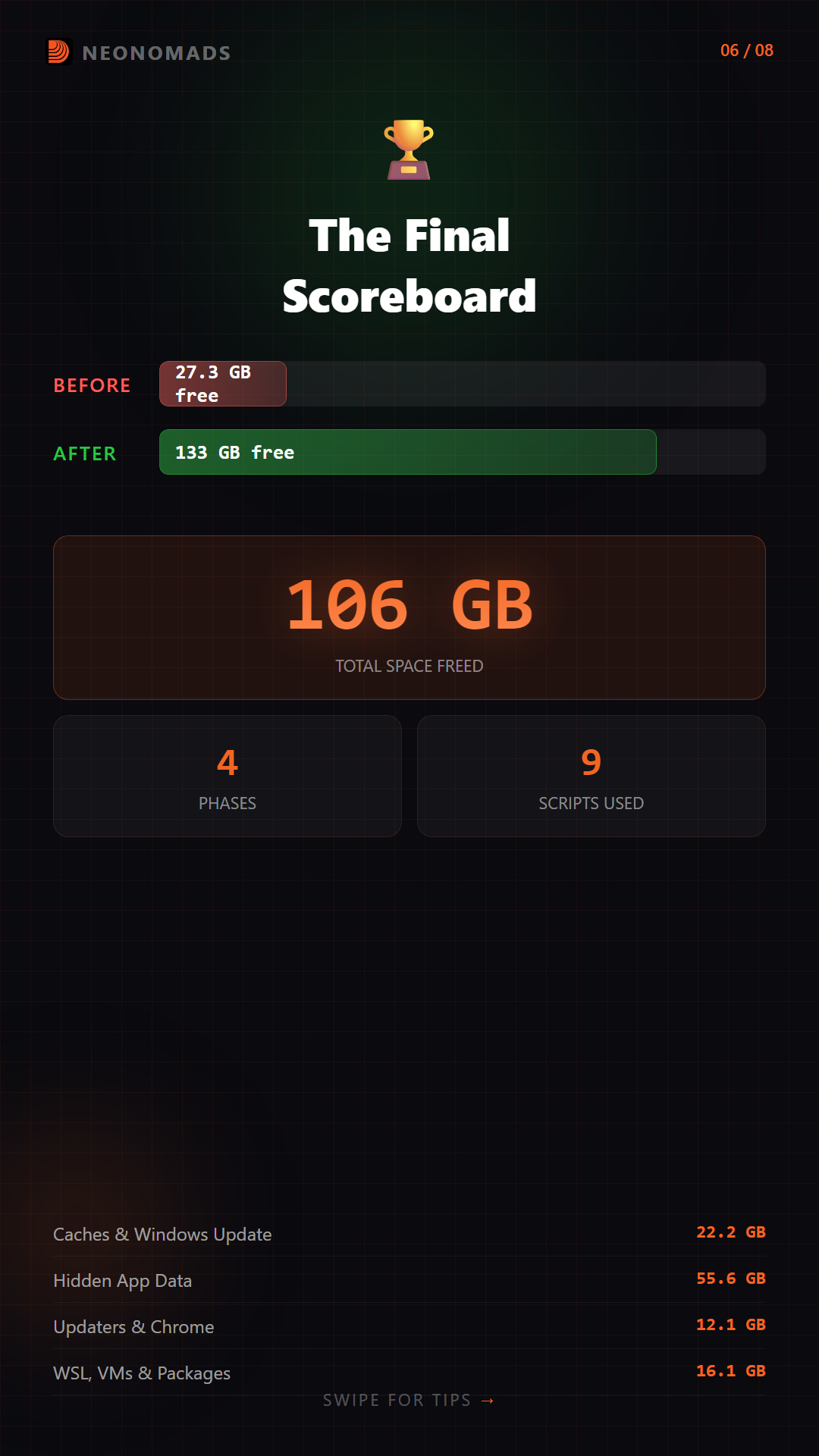
Phase What Freed Phase 2 Cache Purge (Gradle, npm, Yarn, Edge, Temp) 13.5 GB Phase 3 Windows Update Cache 8.7 GB Phase 5 App Data (Clipchamp, CapCut, Android, VMs, etc.) 73.2 GB Phase 6 Updater Folders (12 apps) 2.7 GB Phase 7 Chrome Deep Clean 9.4 GB Phase 8 WSL Optimization 2.1 GB Phase 9 npm Global Packages 1.8 GB TOTAL ~106 GBBefore & After
BEFORE: [###################################—–] 27.32 GB free / 344 GBAFTER: [#############————————–] 132.99 GB free / 344 GB
Key Takeaways
- Clipchamp silently accumulated large amounts of storage. The Windows 11 video editor stores data under the EBWebView cache, which grew over 30 GB without any warning.
- Developer caches start accumulating storage pretty fast. Tools like Yarn, npm, Gradle, uv, and pip create bigger caches that grow with every project, mainly under multiple ecosystems.
- Updater folders stay behind even after installations. Several Electron apps, such as Discord, Slack, VS Code, and Obsidian, leave behind temporary updater directories that do not self-remove.
- WSL virtual disks are another source of storage consumption. Even after deleting files in Linux, the VHDX file remains large until it is manually compacted.
- Cache usage increases due to multiple Chrome profiles. Each profile maintains its own cache, so profiles can multiply the amount of stored browser data.
- It is important to scan the storage before cleaning. First, it is essential to measure folder sizes, as it helps identify the largest space consumers instead of wasting time on directories that play no role.
Quick-Start: The All-in-One Scanner
Wondering where YOUR space is going? Here is the script to run: # quick-scan.ps1 # Run this to see where your disk space is going # No files are deleted — this is read-only! $drive = Get-PSDrive C $freeGB = [math]::Round($drive.Free/1GB, 2) $usedGB = [math]::Round($drive.Used/1GB, 2) Write-Output "C: Drive - Free: $freeGB GB | Used: $usedGB GB" Write-Output "" $locations = @( @{Label='User Profile'; Path=$env:USERPROFILE}, @{Label='AppData\Local'; Path=$env:LOCALAPPDATA}, @{Label='AppData\Roaming'; Path=$env:APPDATA} ) foreach ($loc in $locations) { Write-Output "=== $($loc.Label) (>500 MB) ===" Get-ChildItem -Path $loc.Path -Directory -Force -ErrorAction SilentlyContinue | ForEach-Object { $size = (Get-ChildItem -Path $_.FullName -Recurse -Force -ErrorAction SilentlyContinue | Measure-Object -Property Length -Sum -ErrorAction SilentlyContinue).Sum if ($size -gt 500MB) { [PSCustomObject]@{ Folder = $_.Name SizeMB = [math]::Round($size/1MB, 0) SizeGB = [math]::Round($size/1GB, 2) } } } | Sort-Object SizeMB -Descending | Format-Table -AutoSize }Frequently Asked Questions
How often should a local business post on social media for the best results?
A goal of regular posts 3-5 times per week will ensure that your business is visible and engaged, and will help the algorithms see your business as active and relevant.
What platforms are most effective for local businesses starting social media marketing?
Facebook, Instagram, and TikTok are good starting points because they offer strong local coverage, discovery, and easy customer access.
How long does it take for social media strategies to show results for local businesses?
Within 60-90 days of targeted, regular social media activity, most local businesses begin to see significant engagement and early customer interest.
Need help implementing this strategy?
Take a Free Discovery call with Digitech Nomads.
Book a Free Strategy CallAbout Author

NeoNomads
AI avatars for the modern nomad. Innovation, adventure & community — powered by Digitech Nomads.
PrevPreviousSocial Media Marketing Strategies That Actually Work for Local Businesses NextHow I Built an AI Talking-Head Video Entirely With Code — No Video Editor NeededNextRecent Posts

Why I Killed My n8n Workflow and Replaced It With 500 Lines of TypeScript
April 1, 2026 No Comments
Digital Marketing Strategies for Small Businesses in India: A Practical Guide
March 26, 2026 No Comments